You have a logo that needs to become a stitch file for your Pfaff machine. Maybe it is your business logo for staff uniforms. Maybe a friend asked you to embroider their new company emblem. Whatever the reason, you need that design to run on your Pfaff. But here is the thing. Pfaff machines speak their own language. They use formats like PCS, VP3, and VIP . If you try to feed them a JPG or even a PES file from another brand, they will either reject it or stitch it wrong. You need to learn how to convert logo to PCS embroidery file formats correctly.
The good news is that you have several options. Some tools cost nothing. Others give you professional control. A few let you hand off the work entirely. Let us walk through the best methods available and help you choose the right one for your situation.
What Is a PCS Embroidery File?
Before we jump into conversion methods, you need to understand what you are actually creating. The PCS embroidery file is a special digital format designed mainly for Pfaff and some older Husqvarna Viking embroidery machines . It is not an image or a graphic file. It is a stitch-based format that your machine reads to know exactly how to create your design .
A PCS file holds all the key technical details that guide your embroidery machine. This includes stitch coordinates, color sequences, trims, and pathing . These instructions tell the machine where each stitch should go, how colors should change, and when to trim the thread. The result is a clean, professional-looking logo that stitches exactly as planned.
Unlike image files such as JPG or PNG, which only store visual details, PCS files contain stitching commands your embroidery machine can understand and follow . When compared to other embroidery file formats like DST, PES, or VP3, PCS stands out for its compatibility with Pfaff systems .
Your Pfaff machine can load PCS files along with many other formats. According to the Pfaff Files & Folders owner manual, supported embroidery file formats include .SHV, .DHV, .VP3, .VIP, .HUS, .PEC, .PES, .PCS, .XXX, .SEW, .JEF, .EXP, .10* and .DST . But PCS remains the native format for many Pfaff models.
Why Accurate Conversion Matters
Converting your logo properly matters for several reasons. First, machine compatibility. Pfaff embroidery machines read the PCS format. If your logo is in another format, the machine will not recognize it . Converting your logo to PCS ensures the machine reads every stitch correctly and runs smoothly without errors .
Second, stitch accuracy. When you convert your logo properly, the stitches form clean lines and even shapes. Each element of the design stays in the right place and maintains the correct proportions . Poorly converted files often cause broken stitches, uneven outlines, or distorted designs that look unprofessional .
Third, brand consistency. Logos represent your brand identity, so every color, line, and curve must match the original design. A high-quality PCS file keeps your brand colors accurate and preserves every detail of your logo .
Finally, professional results. For uniforms, promotional items, or caps, a properly digitized PCS file guarantees neat embroidery, smooth machine operation, and consistent results every time .
Method 1: Professional Digitizing Services
The most reliable method for converting your logo to PCS is hiring professional digitizing services. Skilled digitizers manually plan every stitch path, ensuring the logo looks sharp and runs perfectly . They test the PCS file on Pfaff-compatible software, optimize the stitch count, and deliver a clean, machine-ready design every time .
Professional digitizers know embroidery inside and out. They understand how stitch flow, underlay, density, and pull compensation work for every fabric type . This expertise helps them create designs that stitch cleanly without puckering or distortion. They carefully plan each stitch direction and sequence, ensuring your logo looks crisp, balanced, and professional on any material .
Another major advantage is compatibility. Professionals export your design in PCS and other formats like PES, DST, JEF, and VP3 . You can use your logo on different machines without worrying about file corruption or formatting issues. This flexibility is especially useful for businesses that work with multiple embroidery setups .
Before sending the final file, experts preview and test each logo using embroidery simulation software. This step helps catch errors such as gaps, uneven density, or misplaced stitches . As a result, you receive a ready-to-run, flawless PCS file every time .
Speed also matters. Services like Absolute Digitizing deliver files same-day, and rush jobs can be completed in as little as 2 hours . You also get round-the-clock customer support, so help is always available when you need it .
Professional digitizers offer free unlimited edits until you are completely satisfied. Many even provide a money-back guarantee, showing confidence in their work . With prices starting from $10 per logo, hiring a professional costs far less than buying expensive software or fixing ruined garments .
Method 2: Professional Digitizing Software
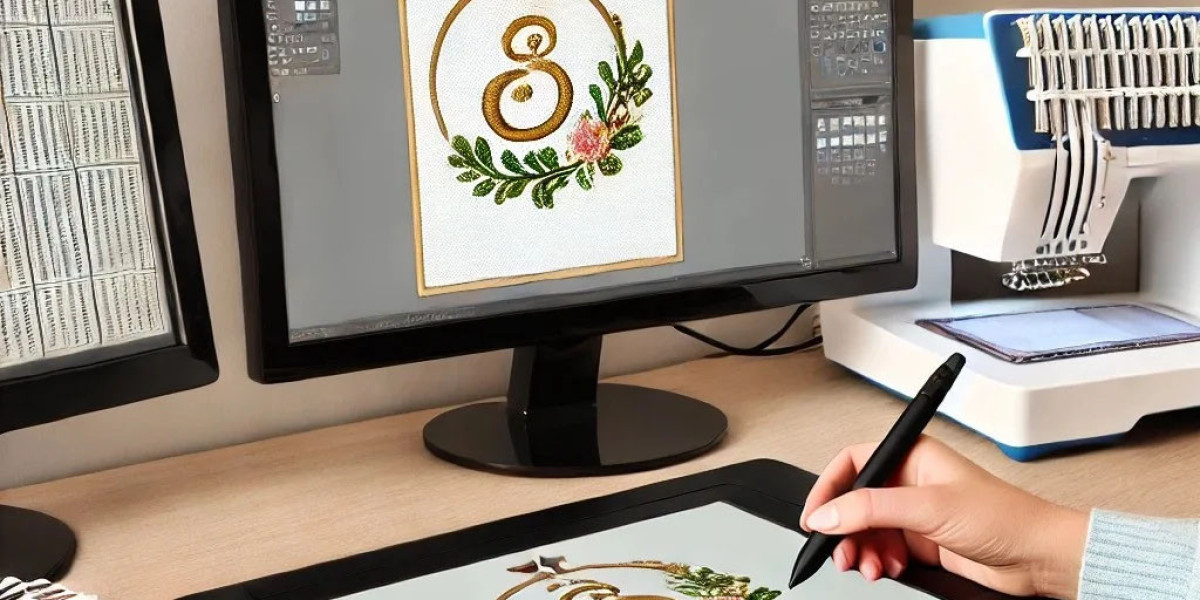
If you prefer to handle conversions yourself, professional digitizing software gives you complete control. Programs like Wilcom Embroidery Studio, Hatch, and Embird Studio can import images, digitize them, and export in PCS format .
Brother's PE-Design Plus 2 is another excellent option. This software turns your favourite photo or illustration files into embroidery designs . It supports multiple formats for import and export, including .pes, .dst, .hus, .exp, .pcs, .vip, .sew, .jef, .csd, .xxx and .shv . With powerful features and an intuitive interface, it gives you the power to digitise and transform your photos into embroidered works of art .
PREMIER+™ 2 Modify also loads and saves PCS files . It opens many embroidery formats including Pfaff .pcs, Tajima .dst, and others . However, be aware of format limitations. There is a limit on the number of stitches that may be saved to a PCS file. If your embroidery exceeds this limit, you will get an error message .
The downside of professional software is cost and learning curve. These programs require experience, training, and paid licenses . You must manually adjust stitches, trims, and density to make the file compatible with your machine. Without proper knowledge, you may still end up with errors or poor results .
Method 3: StitchBuddy HD for Mobile Conversion
For on-the-go conversions, StitchBuddy HD offers a mobile solution. This iOS app lets you have your machine embroidery designs always at hand, wherever you are . You can enjoy beautiful previews on your iPhone and iPad, manage and modify designs, and stay in sync with your computer .
StitchBuddy HD supports PCS import and export. It reads Pfaff VP3, KSM, PCS, PCQ, PCD files and writes Pfaff PCS files . You can rotate, flip, move, resize, or delete selected parts, change individual thread colors, reorder threads, and convert designs to other embroidery file formats .
The app is free to download with in-app purchases. You can test StitchBuddy HD with all functions for free, though saving designs is limited to 1,000 stitches . Unlock this limitation via In-App purchase if you like it .
Note that StitchBuddy HD does not digitize embroidery designs . It converts existing embroidery files between formats but does not create new stitch files from images. For that, you still need digitizing software or services.
Method 4: Free and Low-Cost Options
Free online converters are the easiest and fastest way to turn a logo into a PCS embroidery file. You simply upload your image and download the converted file within minutes . However, this convenience comes with serious risks.
Free online converters often produce low-quality files that cause broken stitches, distorted logos, or wasted fabric . They can distort stitch density, remove fine details, and lose color information . They also struggle with complex or gradient logos . The result is usually a low-quality file that may not run correctly on your Pfaff machine .
Poor conversions can turn a simple embroidery job into hours of frustration . Outlines become jagged, small text loses sharpness, and the final result looks uneven or rough . Many converted files skip important trims or thread changes, causing overlapping stitches and color bleeding . Wrong scaling distorts proportions, and poor underlay causes fabric puckering . Badly converted PCS files can even make your machine jam, skip stitches, or stop mid-run .
For users willing to learn, Ink/Stitch with Inkscape offers a free alternative. This open-source plugin supports many embroidery formats, though PCS support varies. It requires significant technical knowledge but costs nothing.
Common Problems with DIY Conversions
Understanding what can go wrong helps you avoid these pitfalls. Free converters and DIY tools often produce files with poor stitch quality . Outlines become jagged. Small text loses sharpness. The final result looks uneven or rough. This happens because the software cannot accurately map the stitch directions and density needed for clean embroidery .
Many converted files skip important trims or thread changes. This causes overlapping stitches, color bleeding, and messy embroidery . Without proper sequencing, the design may not match your original logo.
A design may look perfect on your computer screen but distort once embroidered. Incorrect scaling changes proportions, making logos appear stretched, flattened, or blurry on fabric .
When the underlay or stitch density is wrong, the fabric puckers or wrinkles. This ruins the professional look of your embroidery and wastes valuable material .
Badly converted PCS files can make your machine jam, skip stitches, or stop mid-run . These interruptions waste both time and thread.
In the end, fixing these errors costs more than hiring a professional. A properly digitized PCS file from experts ensures smooth stitching, accurate colors, and zero frustration .
Step-by-Step: How Professionals Convert a Logo to PCS
Professional digitizers follow a systematic process to ensure quality results .
The process starts when the client sends their logo in a common file type such as JPG, PNG, PDF, or AI . The clearer the artwork, the more accurate the digitizing result will be.
Digitizers use advanced software like Wilcom Embroidery Studio E4 to convert the logo into an embroidery-ready format . This software allows them to control every detail of the stitch pattern.
Experts recreate each part of the logo manually using stitch types such as satin, fill, or run . This ensures the design has clean edges, proper direction, and smooth flow.
Next, they adjust the design according to the size, fabric type, and machine speed . This step prevents thread breaks and uneven stitching.
Once the design is perfected, it is exported to PCS format for Pfaff machines .
The file is tested in simulation mode to detect flaws before delivery .
Finally, the PCS file is sent to the client. If any adjustments are needed, the digitizer provides free edits to ensure complete satisfaction .
Choosing the Right Method for You
Which method should you choose? It depends on your goals and situation.
If you need guaranteed quality for client work, professional digitizing services are your best bet. The cost is low compared to buying software, and you get expert results every time . Services like Absolute Digitizing specialize in PCS conversion with fast turnaround and unlimited edits .
If you plan to digitize frequently and have time to learn, professional software gives you long-term control. Brother PE-Design Plus 2 and Wilcom products are solid investments .
If you already have embroidery files in other formats and just need PCS conversion, StitchBuddy HD offers a convenient mobile solution .
If you are experimenting with a single simple design, free online converters might work. But be prepared for potential quality issues and test thoroughly before stitching final products .
Conclusion
Converting a logo to PCS format is not just about changing a file type. It is a form of digitizing art that requires skill, precision, and experience . A professionally digitized PCS file ensures perfect stitch quality, flawless machine compatibility, and accurate color matching that truly represents your brand .
Free tools may seem tempting, but they often lead to poor results, wasted fabric, and lost time . When a flawless, ready-to-stitch file is so affordable, there is no reason to take that risk.
Whether you choose professional services, invest in software, or use mobile apps, the goal remains the same: a clean PCS file that runs perfectly on your Pfaff machine. Your logo deserves to look its best in thread. With the methods we covered today, you have everything you need to make that happen.